Skip to content

Help centre

How do I…?Short answers, with real screens.

Everything you need for a normal day with Orda, in a few lines each.

Getting started

Five steps through a normal day. The same steps are in your dashboard under Help.

Step 1

Check today’s menu

  • Open Menu in the dashboard.
  • Check your prices, and what you have in today.
  • Tap a dish to change it. Changes show on the customer menu straight away.
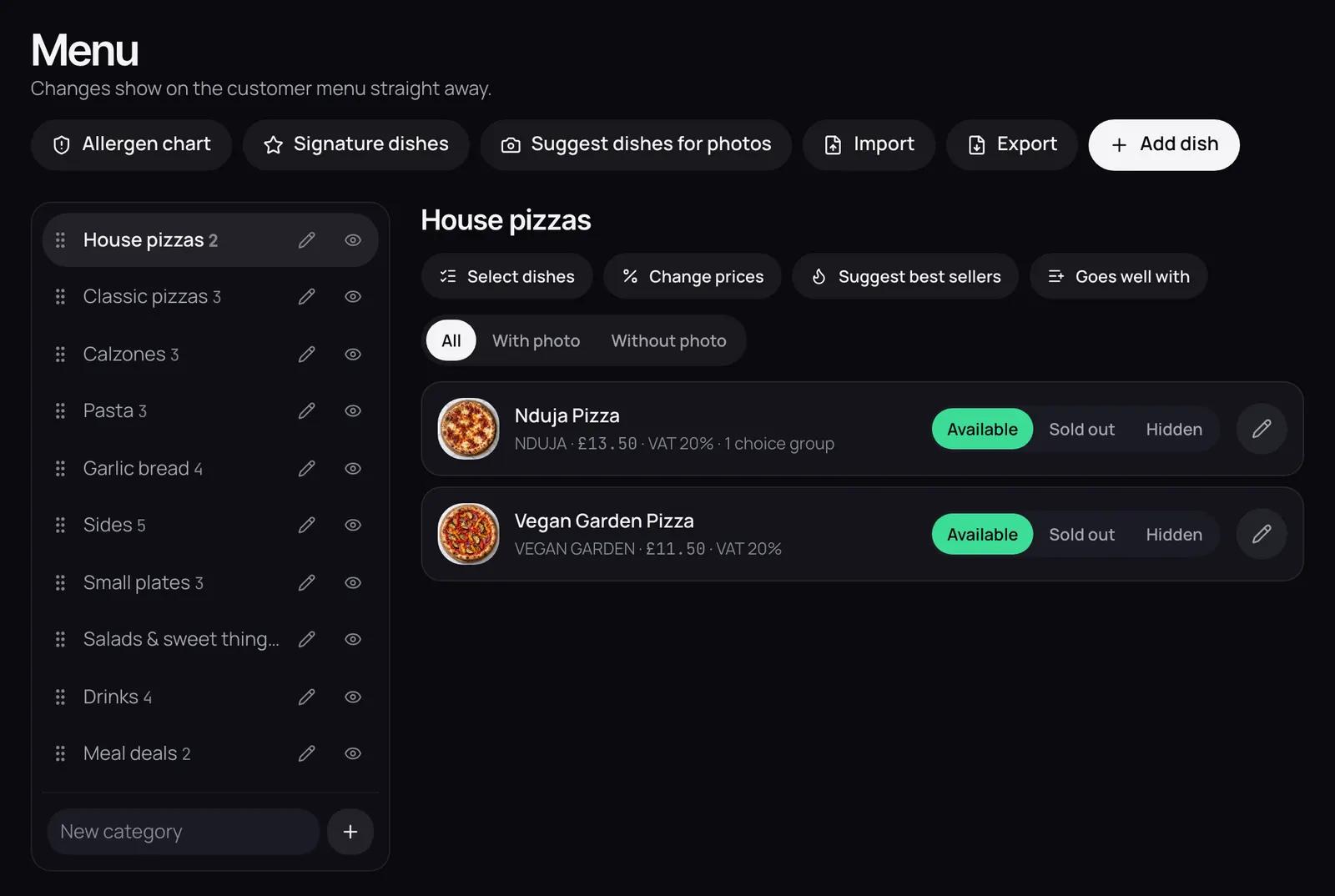
The Menu page: sections down the side, and each dish with its price, VAT rate and Available, Sold out or Hidden.

Step 2

Mark a dish as sold out

  • In Menu, tap Sold out next to the dish.
  • Pick when it’s back: in 30 minutes, 1 or 2 hours, or tomorrow.
  • It greys out on the customer menu at once, and comes back by itself.
  • To bring it back now, tap Available.

Step 3

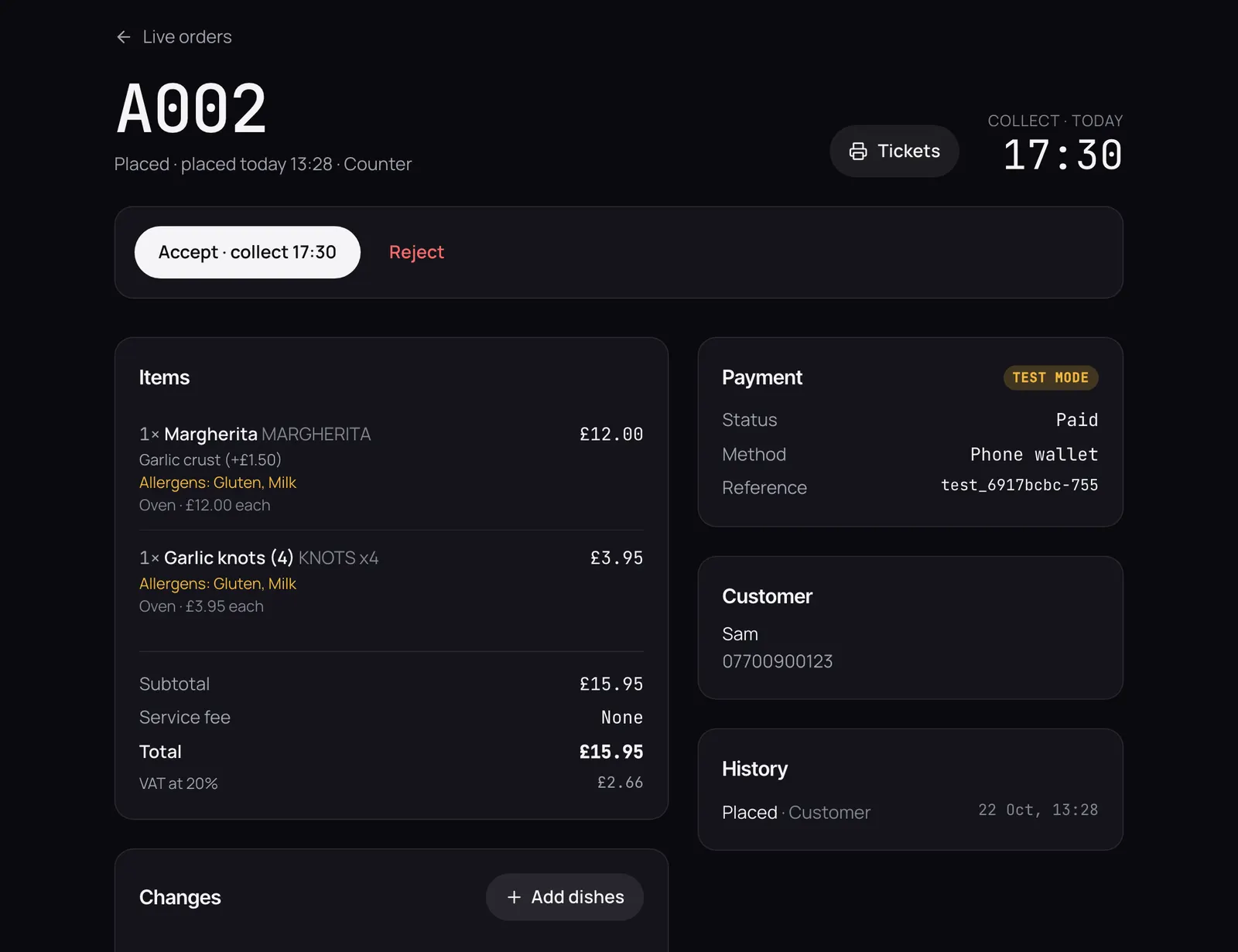
Accept an order

  • Tap Turn on sound once, so your browser lets new orders ring.
  • New orders appear under New on the Orders page.
  • Tap Accept. Change the cooking time first if you need to.
  • Can’t make it? Tap Reject and give a reason. The customer gets a full refund.
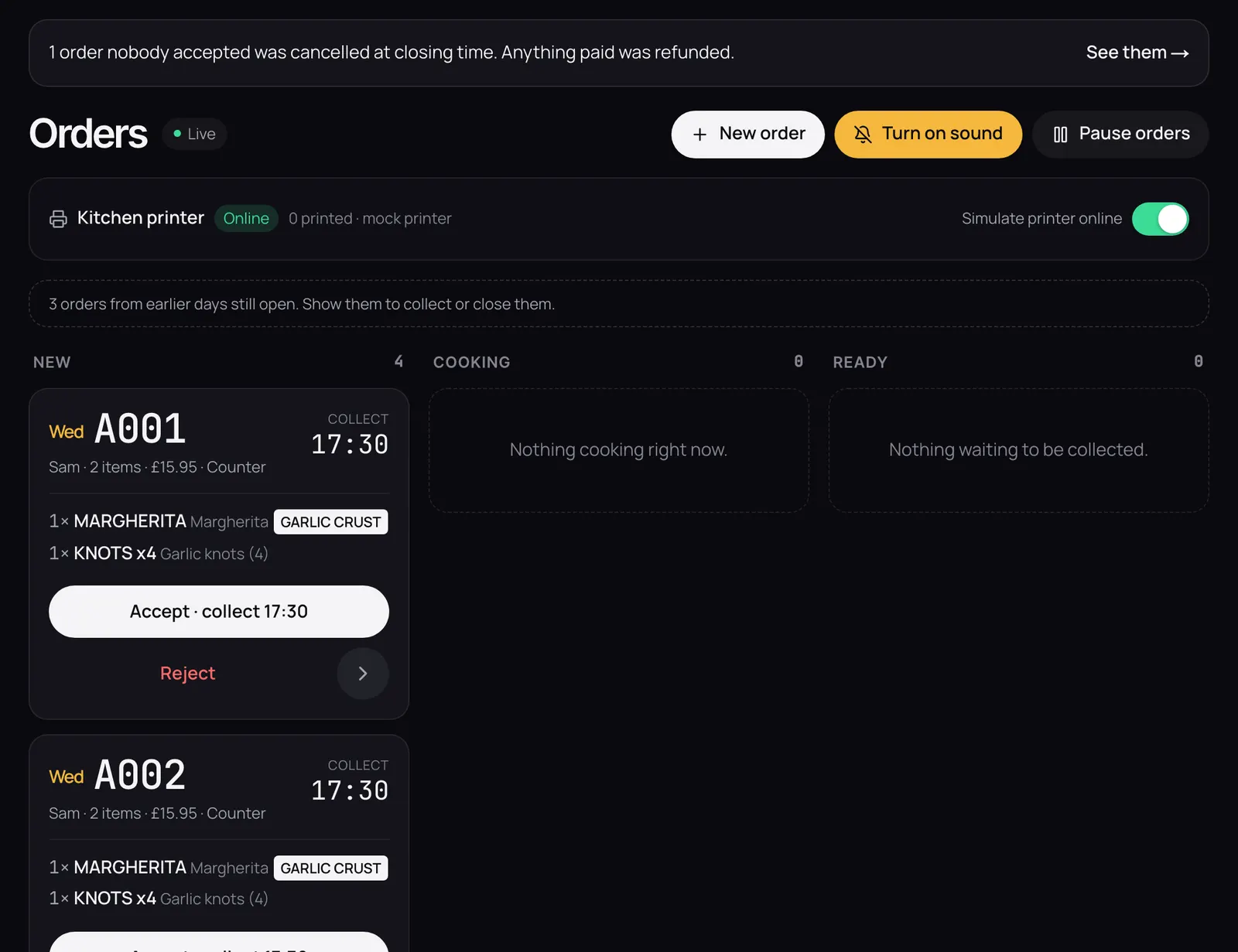
The Orders board: a new order A001 for collection at 17:30, with Accept and Reject buttons.

Step 4

See the kitchen ticket

  • When you accept, Orda makes the tickets: one for each kitchen station with dishes on it, plus a front receipt.
  • Open the order and tap Tickets to see them at 80 mm or 58 mm.
  • Choices and notes are printed large, so the kitchen doesn’t miss them.
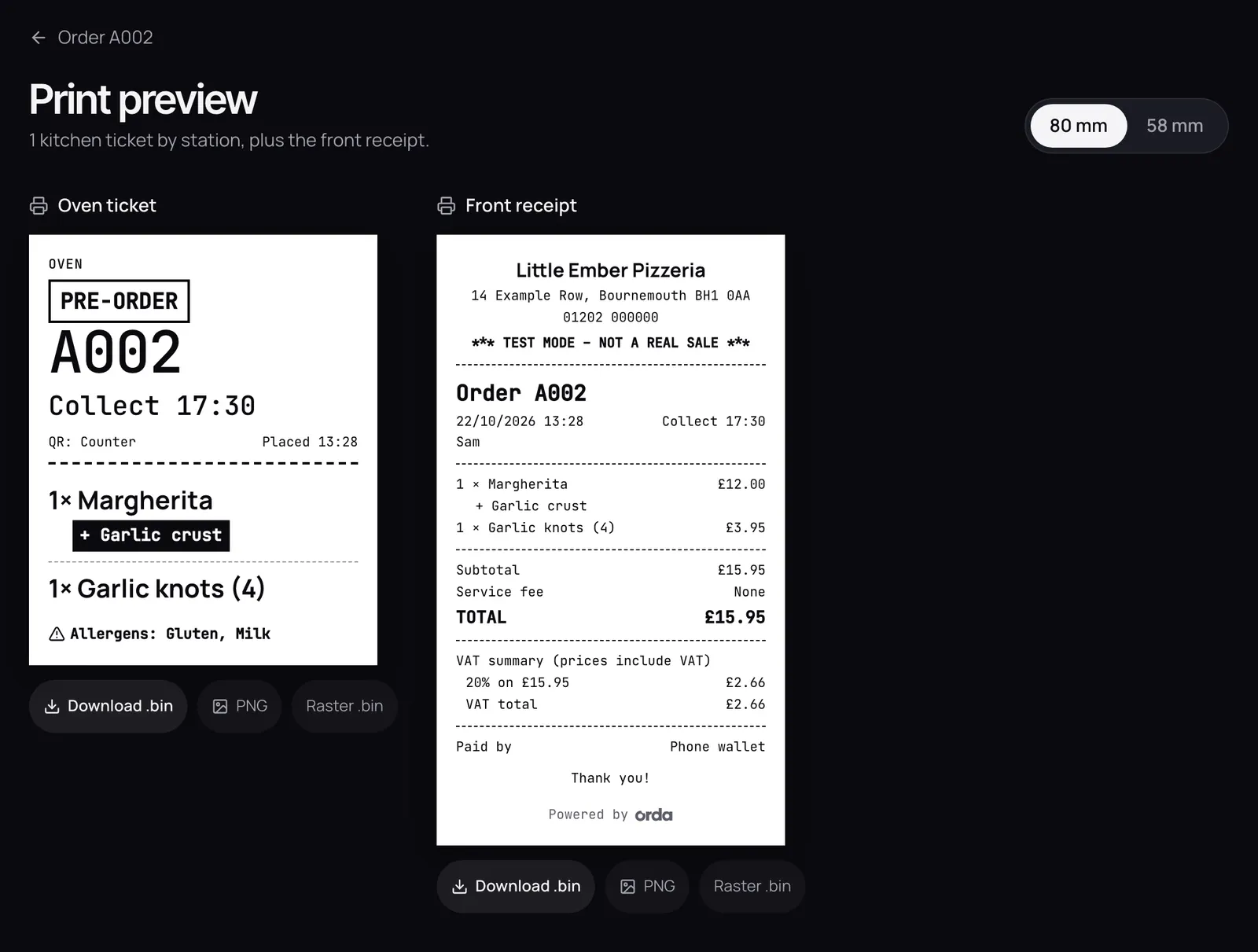
Print preview of order A001: the oven ticket with a large order number and collection time, and the front receipt with VAT.

Step 5

Close and cash up

  • After closing, open Money.
  • Check Today’s cash-up: card, card machine, cash, refunds and VAT.
  • Tap Count the till and enter what’s in the drawer.
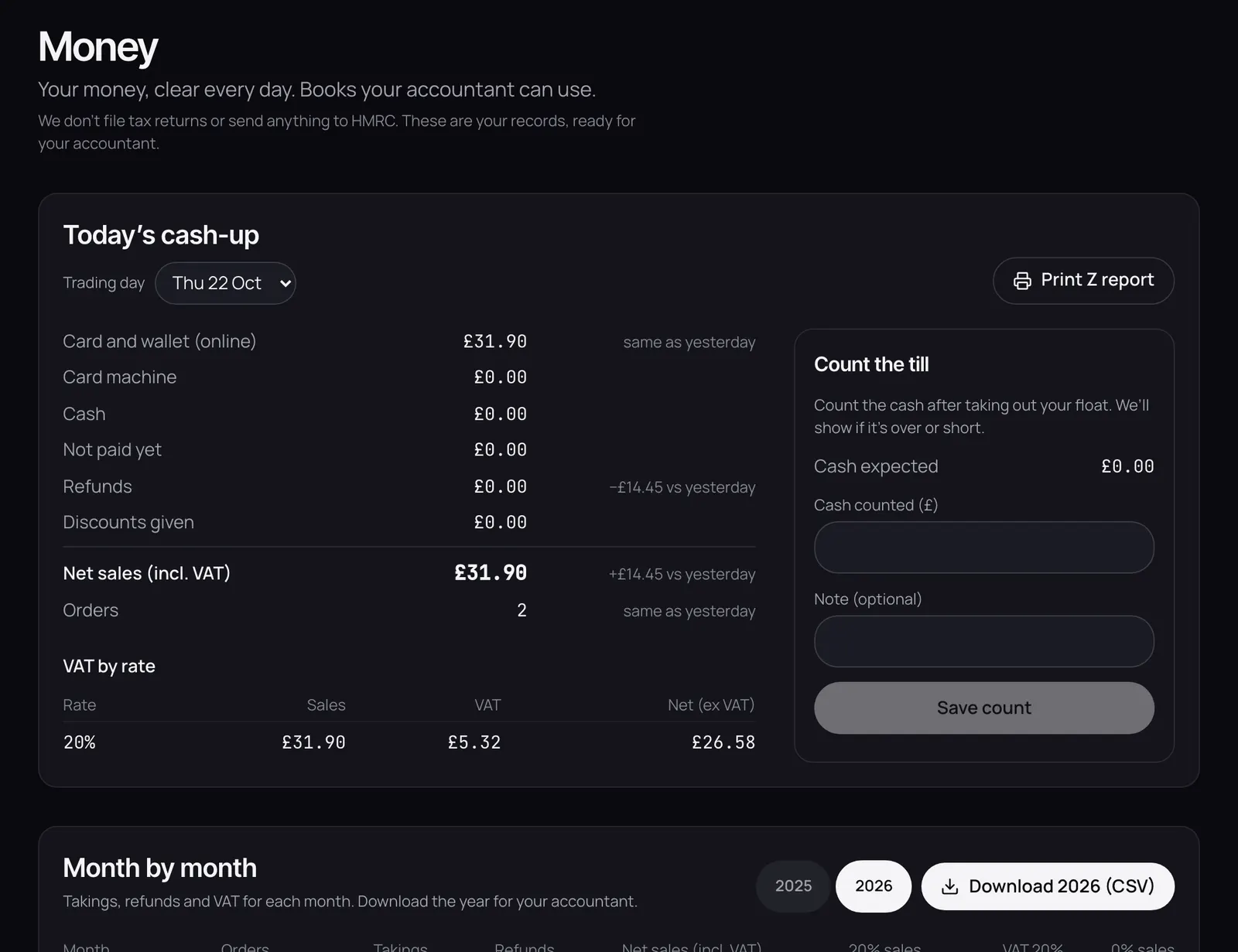
The Money page: today’s cash-up by payment type, refunds, net sales and VAT by rate.

Orders and tickets

Pause new orders

  • Too busy? On the Orders page, tap Pause orders.
  • Pick 10, 20 or 30 minutes, or Until I resume.
  • Customers can still look at the menu. With a time set, they can order for later.
  • Tap Resume to take orders again.
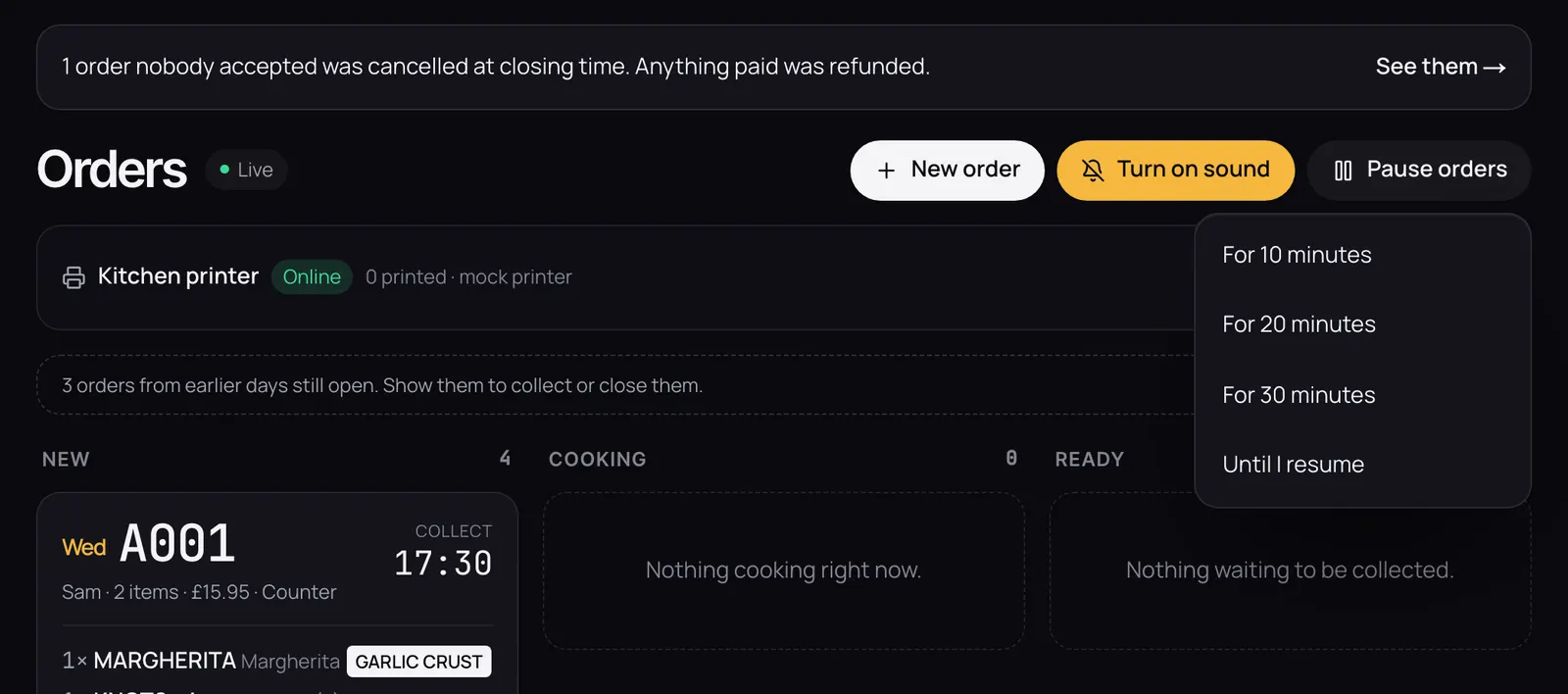
The Pause orders menu open on the Orders page: for 10, 20 or 30 minutes, or until I resume.

Reject or refund an order

  • To turn down a new order, tap Reject and give a reason. The customer gets a full refund.
  • To refund part or all of an order later, open it and tap Refund. Only owners can do this.
  • Every refund needs a reason, and goes in the audit log.
  • Orders are never edited or deleted. A refund is added as a new record, so your takings always add up.

Find an old order

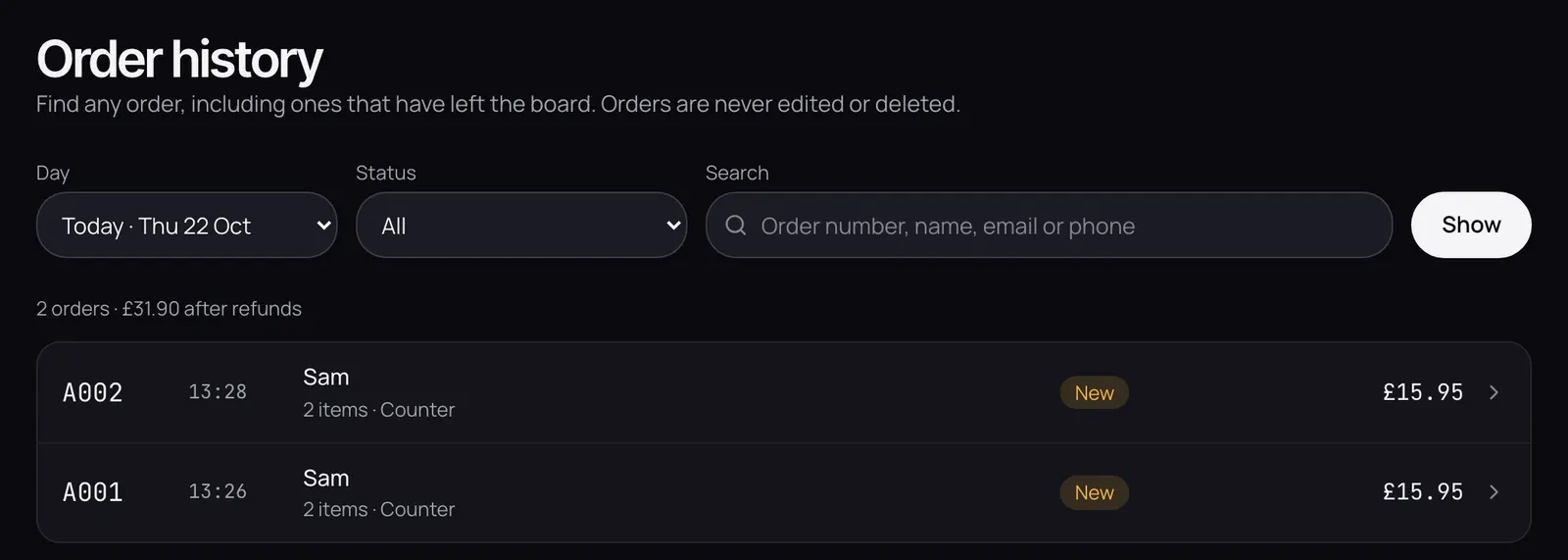
  • Open Order history.
  • Pick a day, or search by order number, name, email or phone.
  • Tap an order to see its dishes, choices, notes, VAT and payment.
Order history: a day picker, a search box and a list of orders with their status and total.

Take a counter or phone order

  • On the Orders page, tap New order.
  • Add the dishes, and the customer’s name if you like.
  • Choose how they pay: cash, card machine, or pay when they collect.
  • It goes on the board and to the kitchen like any other order.

Kitchen tickets and paper

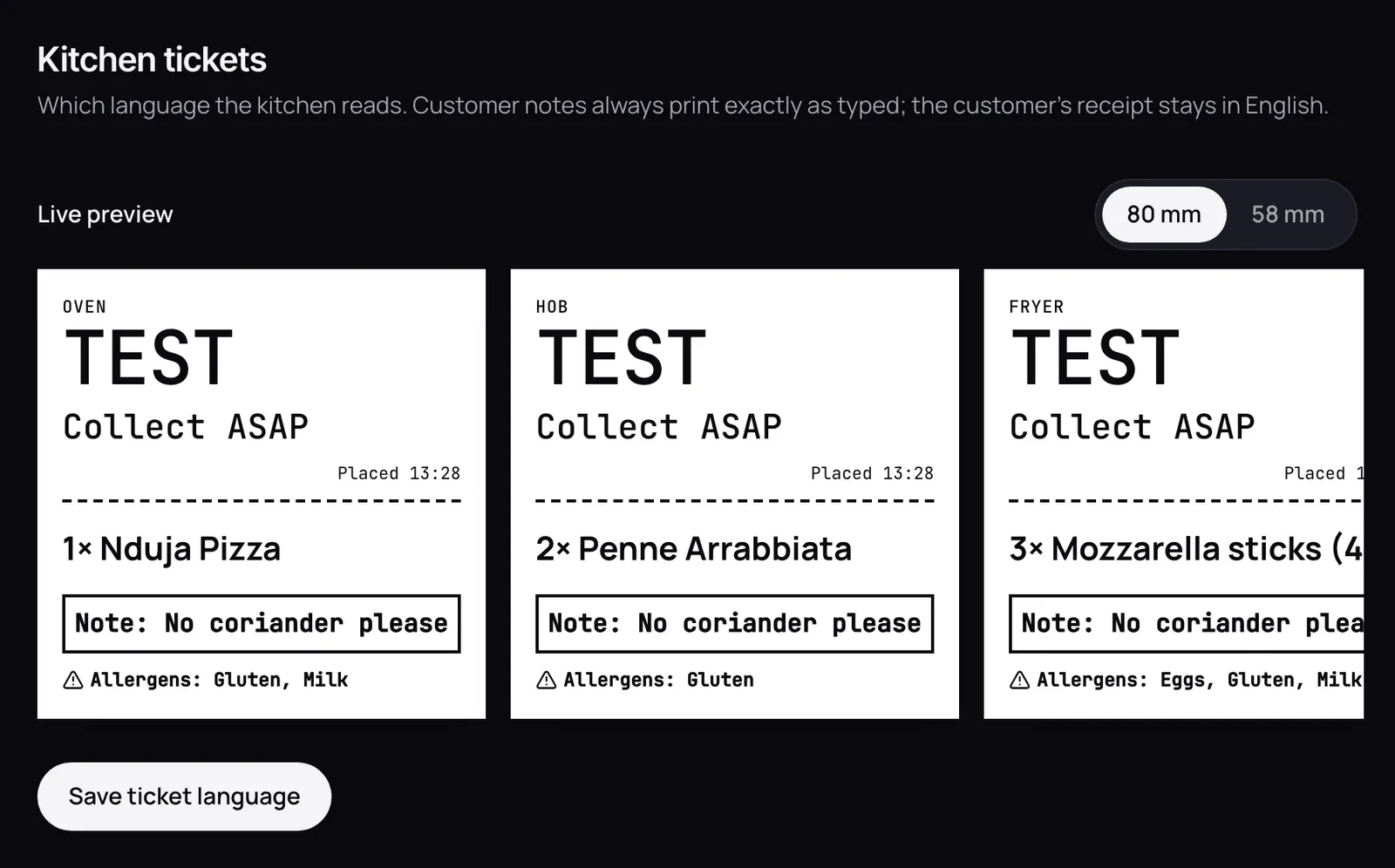
  • Tickets print at 80 mm or 58 mm, to fit your printer’s paper.
  • Each ticket shows the order number, collection time, the dishes by their kitchen name, and any allergens.
  • Choose the language your kitchen reads in Settings → Kitchen tickets. The customer’s receipt stays in English.
Settings → Kitchen tickets: a live preview of the ticket for each station.

Printers

  • Orda works with the printer you already have. We don’t sell printers.
  • Most kitchen receipt printers work: 80 mm or 58 mm paper, connected to your phone, tablet or computer.
  • To check yours, open Settings → Printers and test print, then tap Open the test print.
  • Printing straight to the kitchen printer, with no button to press, is on our roadmap.

Money and VAT

Prices include VAT

  • Your menu prices are what customers pay, VAT included.
  • Each dish has a VAT rate: 20% (standard) or 0%. New dishes start at 20%.
  • Hot takeaway food is 20%. Some cold food is 0%. If you’re not sure, ask your accountant.
  • Orda works out the VAT on each line in pence, and shows it on receipts and reports.

Your daily cash-up and Z report

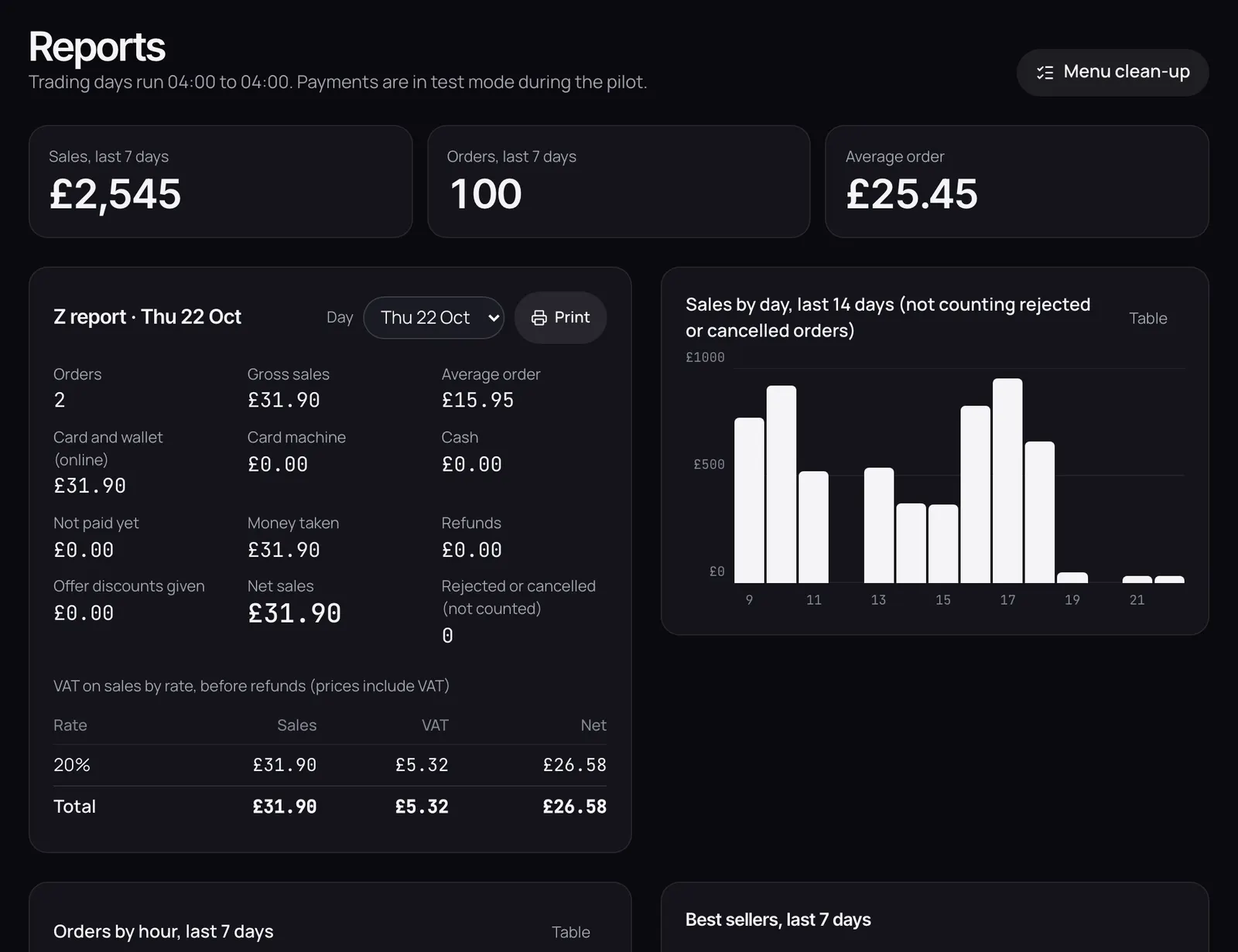
  • Money shows each trading day: card, card machine, cash, not paid yet, refunds and discounts.
  • VAT by rate is underneath, ready for your accountant.
  • Tap Print Z report for a paper copy.
  • Once a day is closed, its Z report doesn’t change.

Reports and CSV files

  • Reports shows sales and orders for the last 7 days, best sellers, and orders by hour.
  • Download Orders CSV and VAT summary CSV for your accountant.
  • We don’t file tax returns or send anything to HMRC. These are your records.
The Reports page: sales and orders for the last 7 days, the average order, and the Z report for a day.

The VAT registration threshold

  • Reports adds up your takings for the last 12 months.
  • You get a warning as it gets close to the VAT registration threshold (£90,000).
  • It’s a guide from your own records, not tax advice. Talk to your accountant.

Where the money goes

  • During the pilot, card payments are in test mode. No real money moves yet.
  • Card payments through Stripe Connect are on our roadmap. You’ll have your own Stripe account.
  • Customers will pay you directly, and the money goes to your bank, not through us.
  • We never store card details.

QR codes and posters

Your QR codes

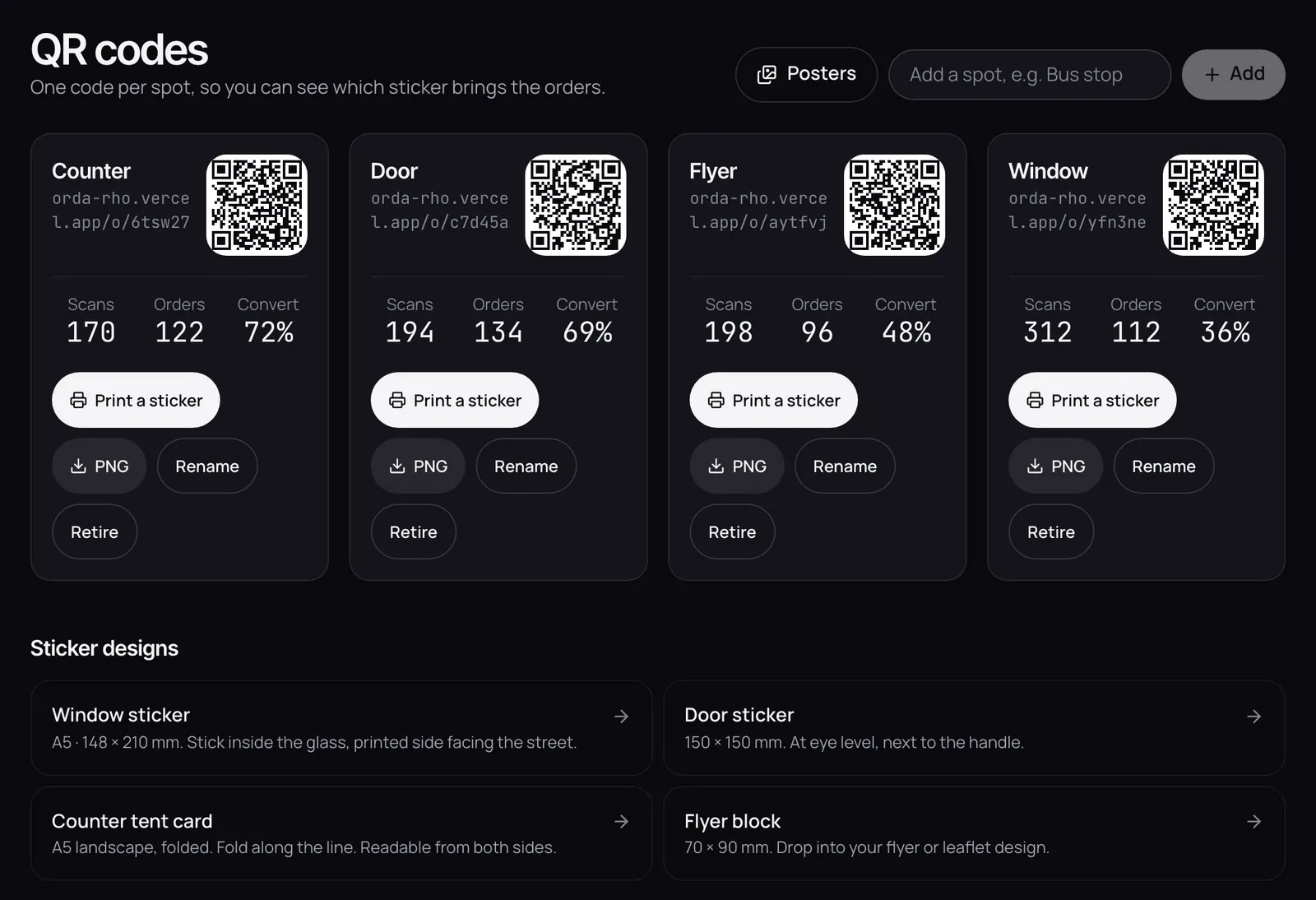
  • Open QR codes. You get one code per spot: window, door, counter and flyer.
  • Each one counts its scans and orders, so you can see which spot works.
  • To add a spot, type its name, for example Bus stop, and tap Add.
  • Rename or retire a code any time. A retired code still opens your menu, and stays in your reports.
The QR codes page: a card for each spot with its QR code, short web address, scans, orders and conversion.

Print a sticker

  • Tap Print a sticker on a code, then pick a design: window, door, counter tent card or flyer block.
  • The window sticker is A5. Stick it inside the glass, printed side facing the street.
  • The short web address is printed under every code, for anyone who can’t scan.
  • Print it, or download a PNG for your printer or designer.

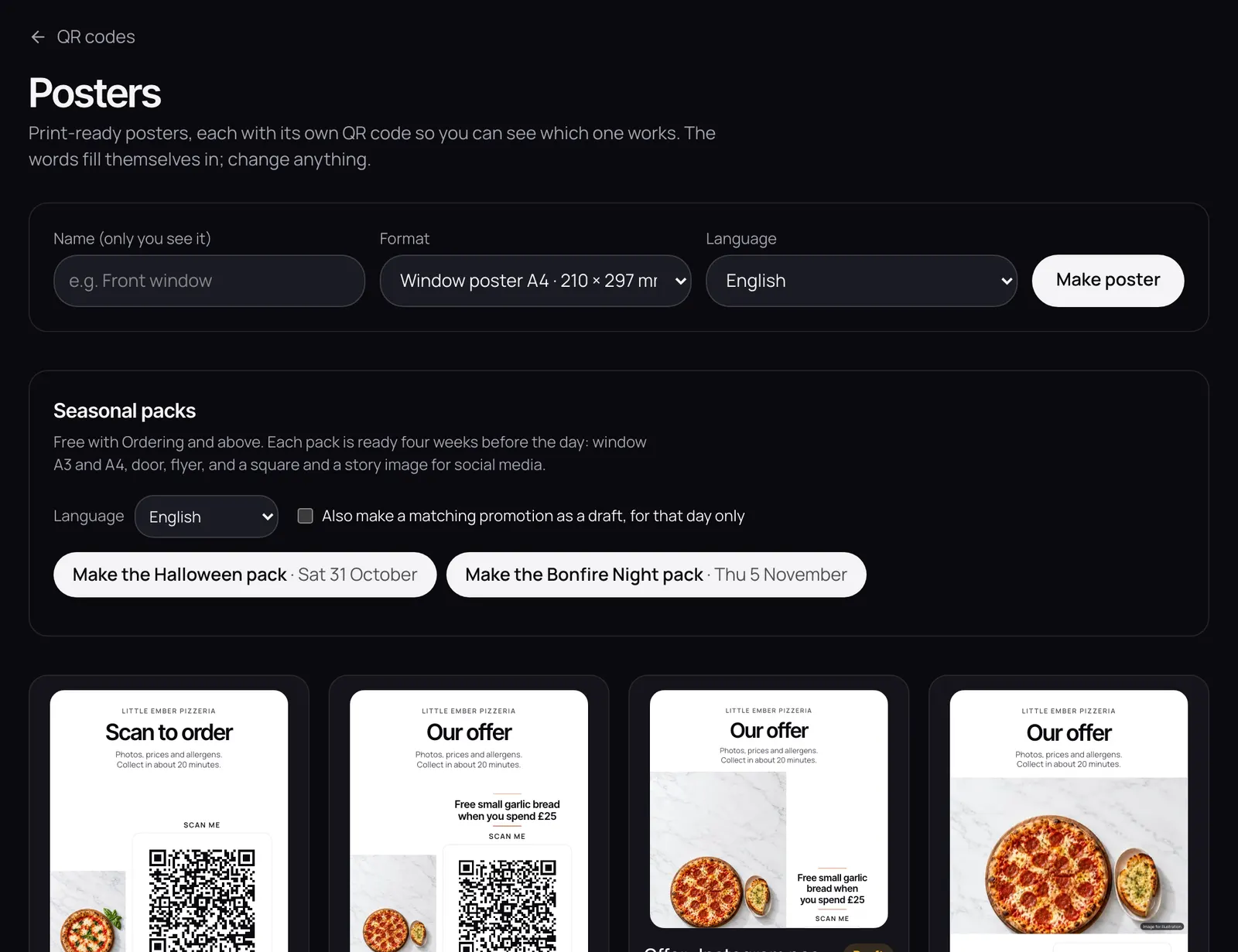
Posters for your shop and social media

  • In QR codes, tap Posters.
  • Pick a size for print or social media, and a design.
  • The words fill in by themselves. Change any of them.
  • Each poster has its own tracked QR code. Print it, or download it as a picture.
The Posters page: poster designs in print and social media sizes.

Allergens

Set a dish’s allergens

  • In the dish editor, tick the allergens it contains, from the UK’s 14.
  • They show on the customer menu, on kitchen tickets and in the allergen chart.
  • Customers can mark their own allergies. Matching dishes are labelled, never hidden.

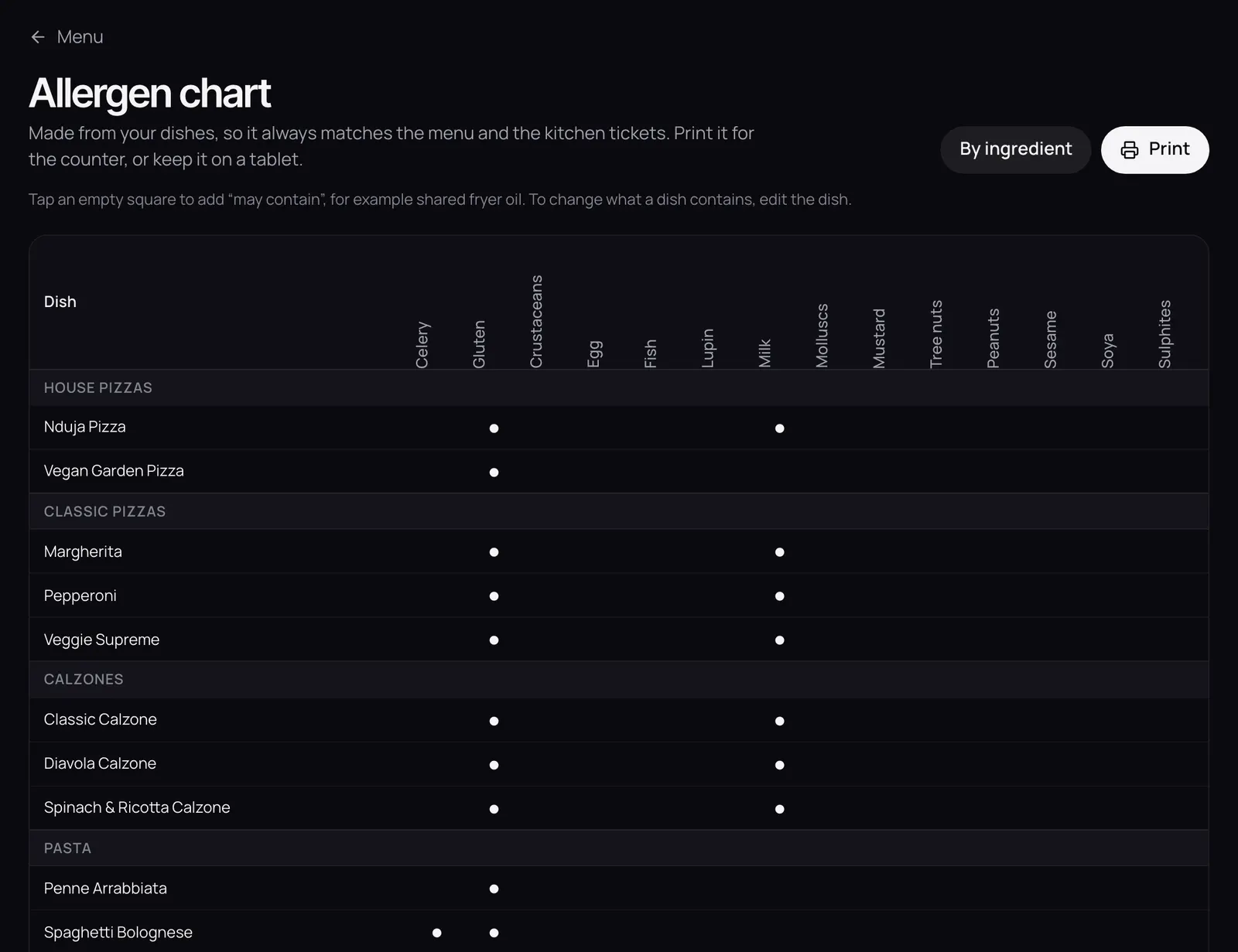
The allergen chart

  • Open Menu → Allergen chart. It’s made from your dishes, so it always matches the menu.
  • Tap an empty square to add “may contain”, for example for shared fryer oil.
  • Tap Print to put it on the counter, or keep it on a tablet.
The allergen chart: dishes down the side and the 14 allergens across the top, with dots where a dish contains one.

Allergens from ingredients

  • In the allergen chart, tap By ingredient.
  • Tell Orda what goes into each dish. It works out the allergens from the ingredients.
  • You see a preview before anything changes. Dishes show “being confirmed” until your kitchen checks them.

Keep it right

  • Your kitchen knows what goes in the food. Orda helps you show it clearly.
  • Check the allergens whenever you change a recipe or a supplier.
  • The customer menu asks people with allergies to tell you before they order, and shows your phone number.

Bookings

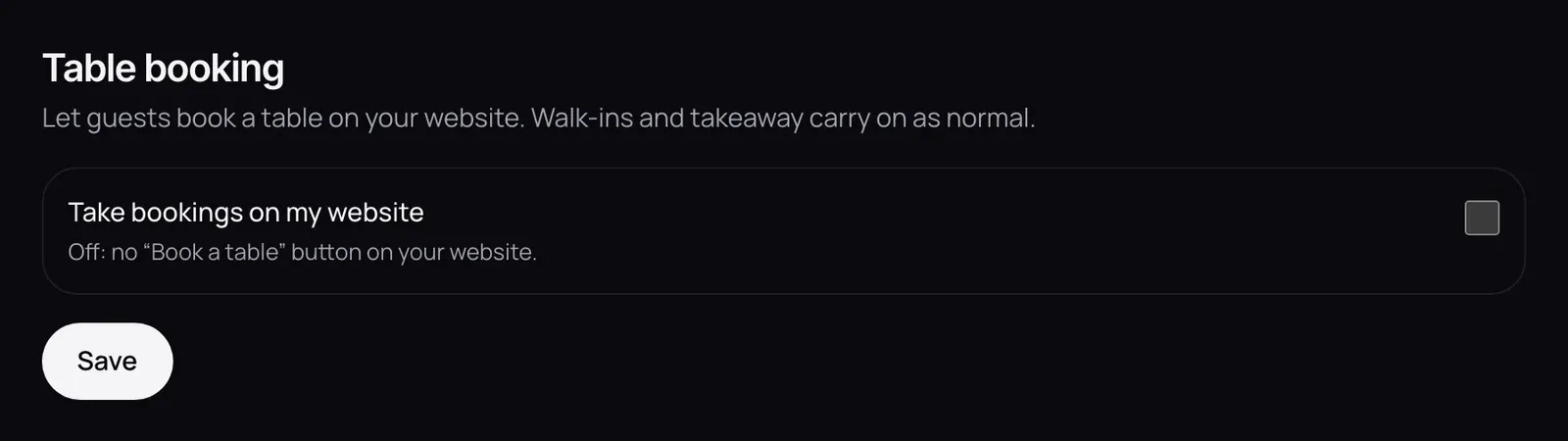
Turn on table booking

  • Open Settings → Table booking and switch on Take bookings on my website.
  • A Book a table button appears on your website.
  • Set the biggest group online, how many guests at once, the table time, and how far ahead people can book.
  • Keep some tables back for walk-ins: online bookings stop at your limit.
Settings → Table booking: the switch to take bookings on your website, and the booking limits.

Manage bookings

  • Open Bookings to see each day’s tables.
  • Tap Add a booking for a phone call or walk-in. These can go over your online limits.
  • When guests arrive, tap Seat, then Finish when they leave. Or mark a No-show.
  • To cancel a booking, give a reason. It goes in the audit log.

Account and security

Owner and staff accounts

  • Open Settings → Staff accounts and tap Add a staff account.
  • Give everyone their own account. Don’t share one.
  • Owners can do everything. Staff get the shop floor: orders, sold out, pausing and printing. No prices, refunds or reports.
  • To stop someone signing in, tap Turn off. Their past actions stay in the audit log.

Approving money off an order

  • Staff can add dishes to an order any time.
  • Taking money off (removing a dish, a discount, on the house) needs you.
  • In Settings → Order changes by staff, choose I approve it afterwards, or My PIN on the spot.
  • Five wrong PIN tries locks it for 15 minutes.

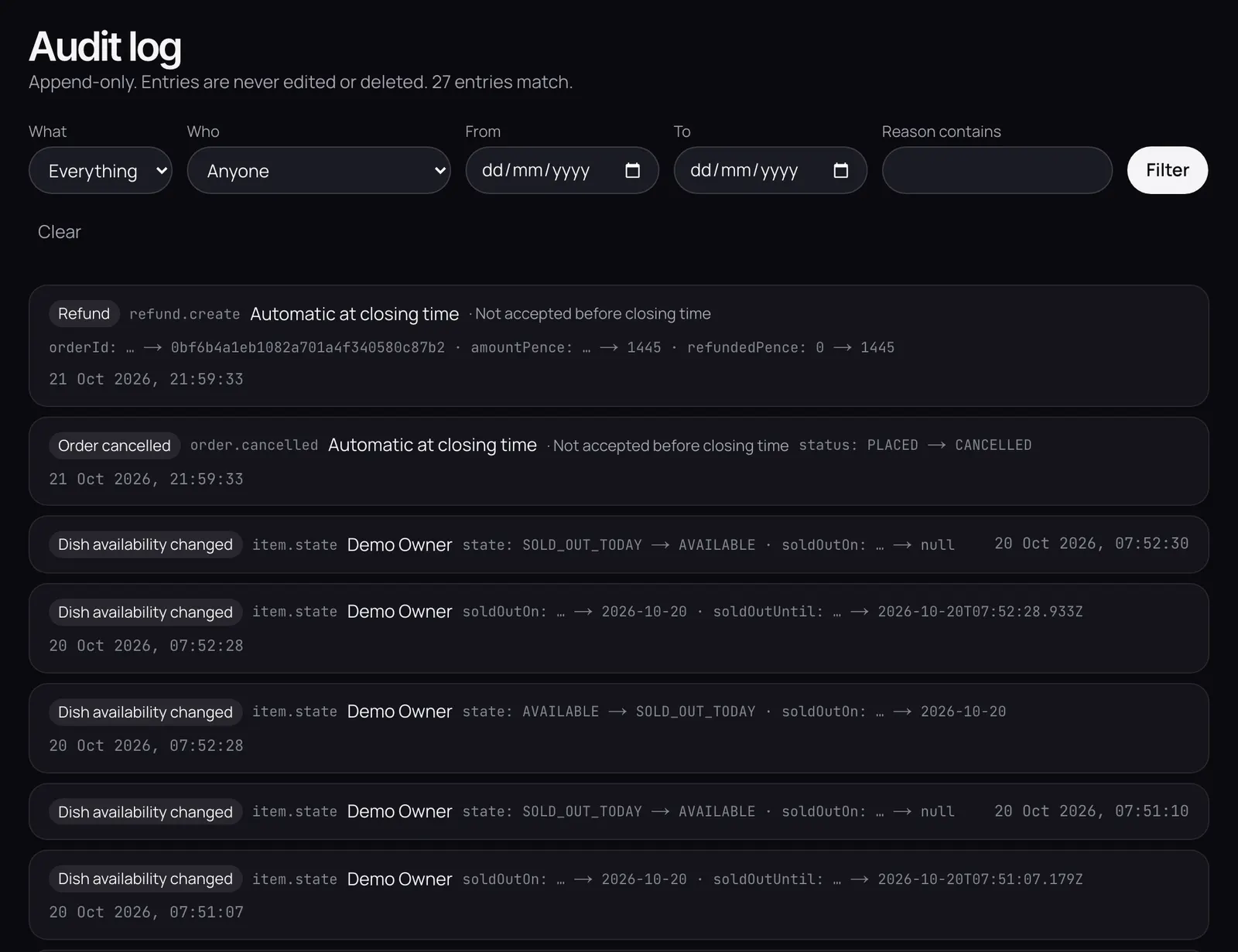
The audit log

  • Open Settings → Audit log.
  • Every refund, price change, menu change and staff action is there: who, when, what changed, and why.
  • Filter it by type of change, person, dates or reason.
  • Nobody can edit or delete it.
The audit log: a list of changes with who made them, when, and what changed.

Signing in and passwords

  • A sign-in lasts 12 hours. Sign out from the bottom of the menu on a shared device.
  • Forgotten a password? An owner can reset it in Settings → Staff accounts.
  • Resetting a password signs that person out everywhere.
  • Each person can choose their own dashboard language in Settings → Language.

Still stuck?

Email hello@orda.example and a real person will help, in English, Mandarin or Cantonese.